

Teams can suffer from team sprawl faster than most owners expect. One month it’s a handy workspace, and six months later it’s full of duplicate teams, unknown guests, old files, and nobody quite knows who owns what.
For Australian businesses with 20 to 200 staff, Microsoft Teams governance forms a key part of your information governance strategy. It keeps collaboration useful without adding red tape. It helps you control unused teams, guest access sprawl, file oversharing, weak offboarding, and unclear ownership. It also supports local privacy and security needs, including the Australian Privacy Principles, the Notifiable Data Breaches scheme, and APRA CPS 234 for regulated firms.
Set simple rules before Teams gets out of control
Good governance starts small. You don’t need a long policy pack or a full-time admin. You need a few clear rules that stop sprawl before it starts, such as those in a simple governance plan template.
That usually means four things. First, decide who can create teams. Next, set naming conventions. Then, use templates for common team types. Finally, add a lightweight approval step where it makes sense.
Without those basics, Teams grows like an overstuffed filing cabinet. People create spaces for the same project twice, files end up in the wrong place, and no one trusts search results. For SMBs, that wastes time and raises risk.
### Decide who can handle team creation, and when approval should be required
If everyone can create teams at any time, you’ll usually get duplicates, abandoned workspaces, and weak oversight. That’s not a people problem. It’s a process problem. Teams rely on Microsoft 365 groups as their underlying architecture, so smart controls here prevent broader sprawl.
A better model is to allow team creation for approved users, business unit leads, or service desk staff. If your business moves quickly, use a short approval flow instead of a hard block. Ask for the team name, purpose, owner, expected lifespan, and whether guests are needed. That’s often enough.
For smaller firms, the goal isn’t bureaucracy. It’s a quick check that ties each new team to a real business need. That fits well with Microsoft Teams governance and broader Office 365 security best practices across your Microsoft 365 setup.
Use naming conventions and templates so every team starts the right way
Names matter more than people think. A team called “Project Alpha” means little after a year. A name like “Finance-Budget-2026” or “Client-ABC-Onboarding” is easier to manage, search, and review.
Pick one format and keep it simple. Common examples include Department-Project-Year or Client-Function. If you want to sort by region or office, add that too. The point is consistency.
Templates help just as much. A project team might always include General, Files, Meetings, and Risks channels. A client team might start with tighter guest settings and a shorter retention period. When each team begins from the same template, staff make fewer mistakes and IT spends less time cleaning up later.
Give every team a clear owner, a purpose, and a life cycle
A team without a named purpose is like a room without a door sign. People walk in, drop things off, and move on. Months later, nobody knows if the room still matters.
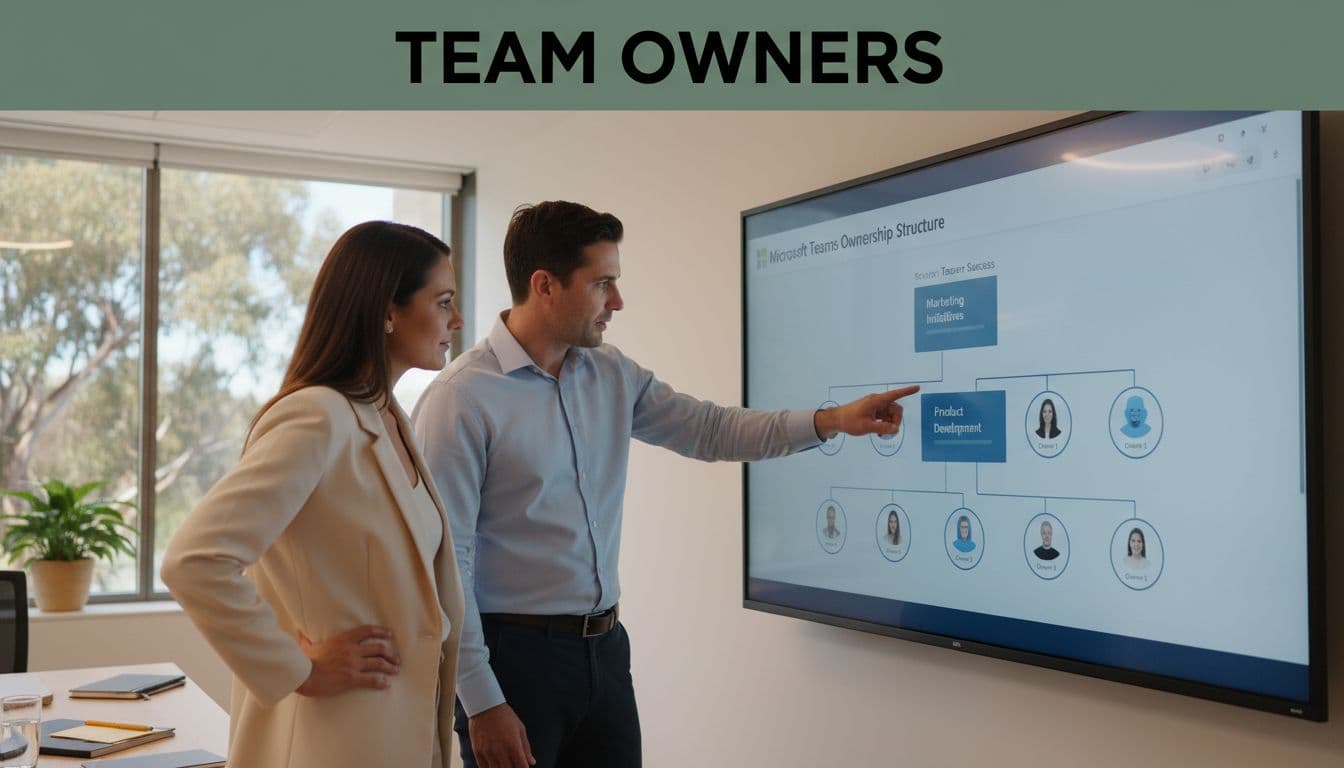
Every team should have a short business purpose, at least two team owners, and a review date. That’s the core of lifecycle management, the process that guides teams from creation to deletion. It also makes offboarding much easier when staff change roles or leave.
Why two owners per team is a smart minimum
One owner isn’t enough. If that person goes on leave, moves departments, or exits the business, the team can become ownerless overnight.
That creates real problems. Membership requests stall, guest access stays unchecked, and nobody feels responsible for files or channels. Two team owners is the practical minimum because it gives you backup without adding extra admin.
### Review inactive teams before they turn into security and storage problems
Old teams don’t stay harmless. They collect stale permissions, outdated files, and forgotten guests. Over time, they become both a storage drain and a security blind spot.
Set a review cycle that fits your size, usually quarterly or every six months. Look for clear signs a team should undergo archiving or be deleted: no recent activity, a finished project, duplicate purpose, or no confirmed owner. Microsoft 365 supports an expiration policy and renewal policies, and many businesses also follow broader lifecycle management ideas from Microsoft Teams governance best practices in 2026.
A team should have an owner, a business reason, and an end point. If it has none of those, it probably shouldn’t stay active.
Control guest access, apps, and sensitive information without slowing work down
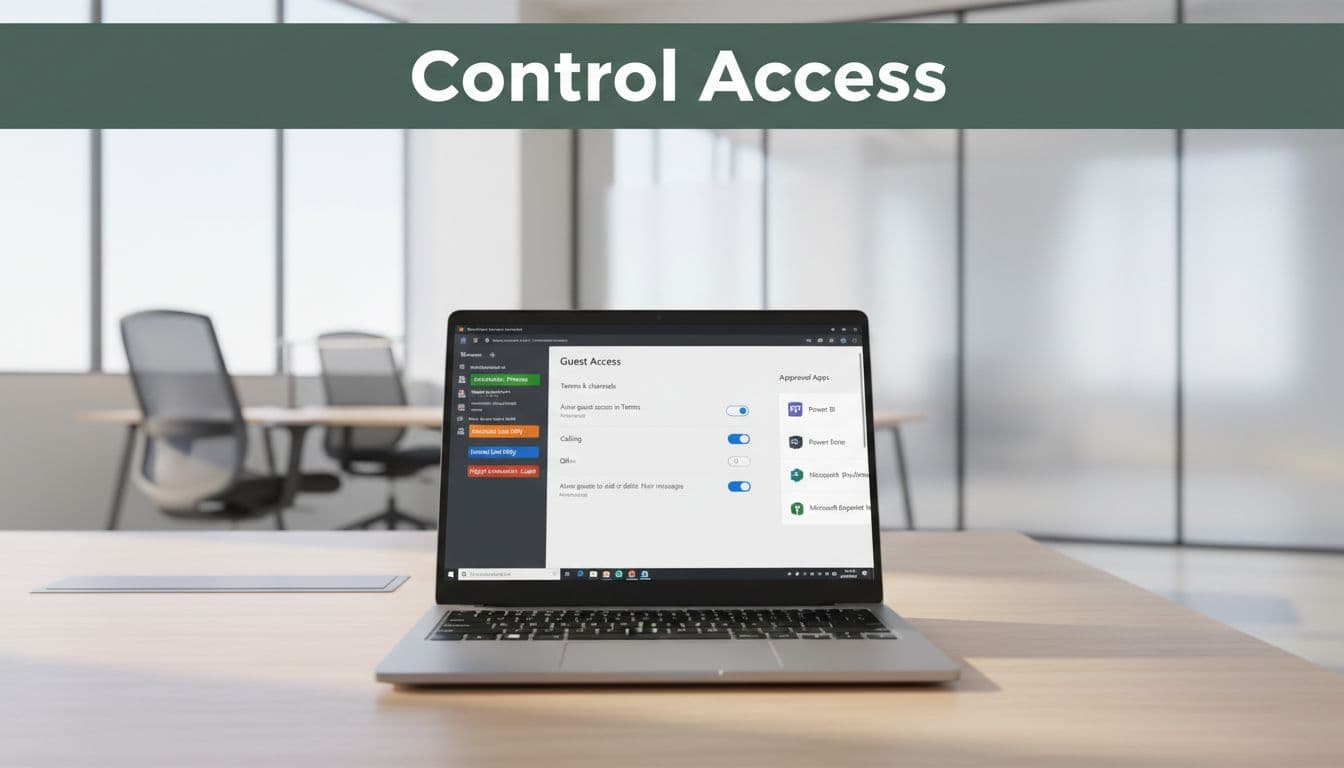
Most SMBs need external collaboration. Clients, vendors, accountants, recruiters, and contractors all need guest access at some point. The answer isn’t to block guest access across the board. It’s to allow the right access in the right places, such as shared channels for external collaboration and private channels for internal sensitive work.
That means setting guest rules, limiting risky apps, and classifying sensitive data. It also means treating Teams as more than chat. Behind each team sit files, permissions, meeting content, transcripts, and sometimes personal information.
### Set firm guest access rules for clients, vendors, and contractors
Guest access makes sense when external users need to work with your team on live documents or project discussions. It doesn’t make sense everywhere.
Finance, HR, legal, and executive teams usually need tighter rules or no guest access at all. In other areas, guests can be allowed if an internal owner stays responsible for the invitation, access level, and review date.
Run guest access reviews on a schedule. Also, remove access when the contract ends or the project closes. Microsoft is adding more visibility in this space too, including controls around event registration and alerts for external bots joining meetings as new features roll out in 2026.
Use sensitivity labels and DLP to protect personal and business data
Sensitivity labels are simple in practice. They provide data classification by telling staff and systems whether content is public, internal, or confidential. Data Loss Prevention, or DLP, adds guardrails by spotting risky sharing and blocking it when needed to strengthen data security.
For example, you might stop payroll data from being shared with guests, or block a file that contains payment details from leaving the business. That matters for customer records, employee data, health information, and contracts. It also supports your duties under the APPs and the NDB scheme, because better controls make it easier to reduce exposure, improve data security, and respond faster if something goes wrong.
If you need a local compliance view, the NSW IPC fact sheet on Microsoft 365 compliance obligations is a useful reference point.
Approve only the Teams apps your business trusts
Third-party apps can save time, but they can also widen access and collect data in ways staff don’t see via app permissions. That’s why an approved app list matters.
Keep the review basic. Ask what data the app can access, who supports it, where the data goes, and whether it overlaps with a tool you already pay for. Give staff a simple path to request new apps, so governance doesn’t become a roadblock.
Build governance around Australian compliance, audits, and daily admin
Governance isn’t a one-time setup. It needs light, regular maintenance. For most SMBs, that means basic reporting, a few scheduled checks, and clear ownership on the admin side.
Know where your data sits, how long it stays, and who can see it. That matters more as privacy reform continues through 2025 and 2026, with tighter expectations around consent, personal information, and handling rights under key compliance standards. If your firm works in banking, insurance, superannuation, or a related field, APRA CPS 234 raises the bar even more.
### Map Teams policies to Australian privacy and breach reporting duties
Teams governance should help you handle personal information safely, spot issues early, and produce records when needed. That’s the practical link to the APPs and the NDB scheme.
For regulated firms, it should also support stronger control over access, review, and monitoring with role-based access control and Entra ID for identity management and security reporting. This isn’t legal advice, but it’s a good operating rule: if you can’t explain who had access, why they had it, and when it should end, your governance is too loose.
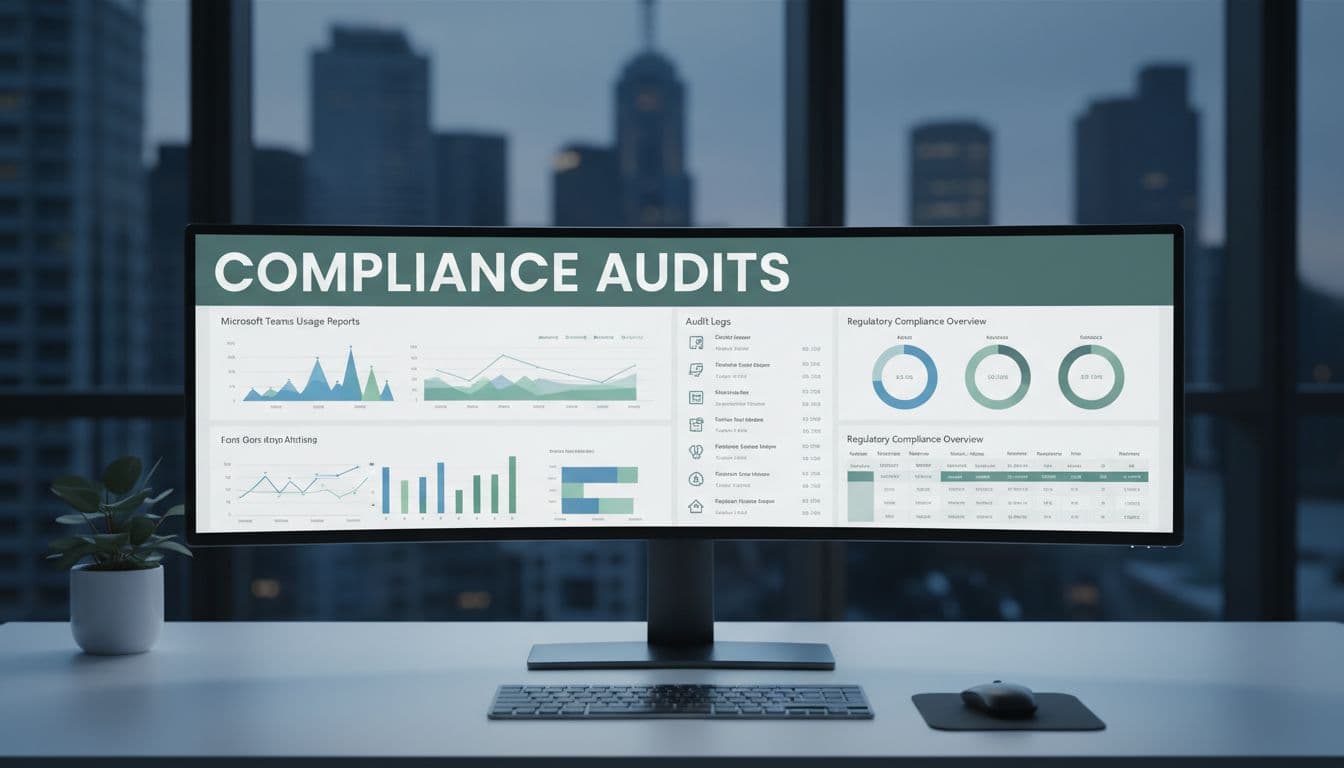
Microsoft Purview, audit logs, and retention policies can help here. If you want a compliance-focused overview, this APRA CPS 234 guide gives useful background for Australian organizations.
Use reports, audits, and automation to keep governance working over time
Start with a short monthly or quarterly review. Check for ownerless teams, inactive teams, broad guest access, missing labels, policy exceptions, and access reviews. Those five checks catch a lot.
Then build from there. The admin center gives a solid view of settings and usage. Purview helps with labels, retention, and DLP. PowerShell can automate repetitive checks if your environment is growing, leading to more advanced automated governance workflows.
Small businesses don’t need a huge admin program. They need repeatable habits, plus support when the work gets too technical. That’s where managed IT and cybersecurity support for Australian businesses can help keep governance running without draining your internal team.
Messy Teams environments rarely happen because people are careless. They happen because nobody set the ground rules early enough.
Start with the basics: control team creation, assign two owners, review guest access, protect sensitive data, and clean up old workspaces. Good governance doesn’t need to be complex. It needs to be clear, practical, and reviewed on a schedule.
If you’re not sure how your current setup stacks up, Get a free IT assessment and review where Microsoft Teams governance, privacy, and security need attention.